 Ripe Planner
If you've ever stared at a blank editorial calendar wondering what recipe to develop next, you've felt the problem Content Gaps is built to solve. It's one of the most-requested features in RIPE, and one I needed for my own work, so I'm excited to finally walk you through it.
Here's how it works, how to set it up, and a few ways to get the most out of it while it's still in early beta.
First, set your reference points
Before Content Gaps can do anything, it needs to know what to compare against. Go to General Settings → Reference Points and enter at least one website, but ideally three.
The goal is to pick sites that are true competitors to each other. For my example, I searched Google for "southern recipes," went to page five, and chose three sites that were ranking near one another. If one of those sites is yours, check the box that marks it as your own site. That flag unlocks extra filtering later.
If you're a recipe developer without a blog of your own, use your top three clients instead, the ones who keep coming back to buy recipes from your shop. Those are the people you're really creating for, and this feature will show you exactly what they're missing.
What's in the Content Gaps tab
The tab has two sections:
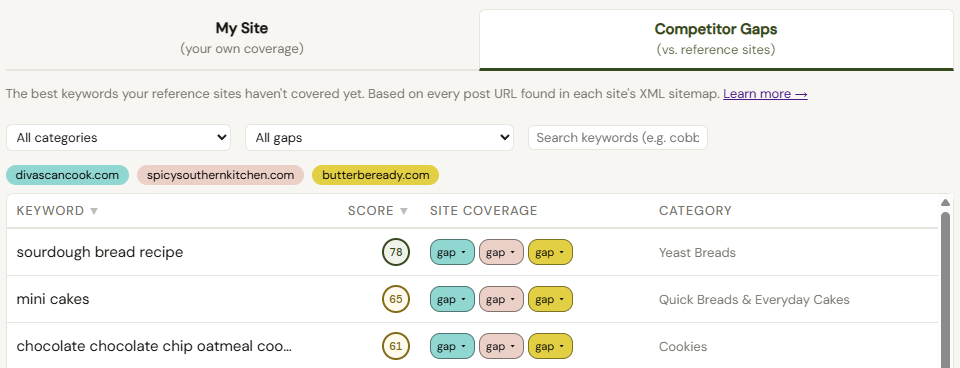
- Competitor Gaps compares your three reference sites against each other and reveals what one is missing that the others have (or what none of them have).
- My Site focuses only on your own website. It maps out your existing content pillars and helps you see where you can build them out further.
A quick word on keywords
There's a lot of debate about whether keywords are dead. My take: they're only dead in the way they used to be used. Google no longer rewards you for stuffing an exact phrase into a post over and over. Instead, it's looking at whether you're building authority around a concept or idea.
That doesn't mean keyword research is pointless. If you're considering a sourdough starter recipe, you still need to know the search volume and how competitive it is. You just don't have to force the exact phrase into your writing anymore.
Using Competitor Gaps
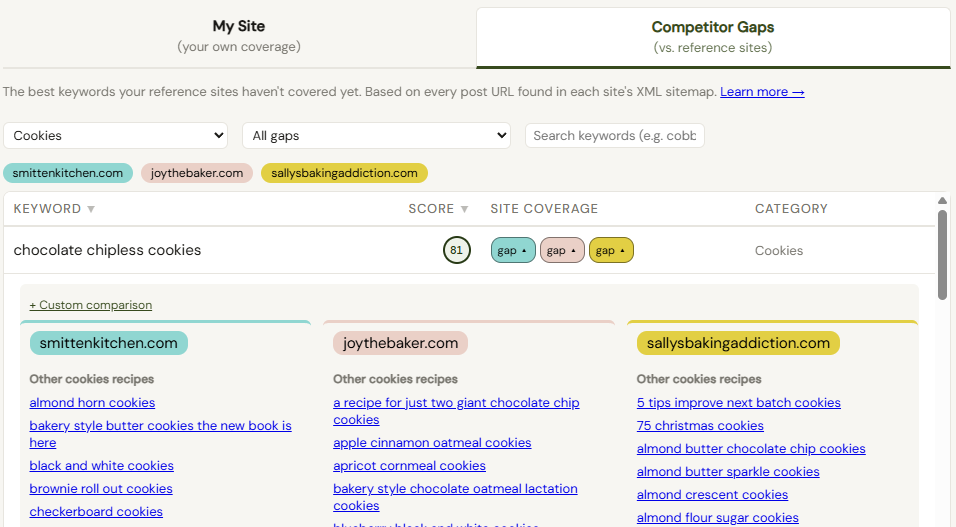
When you open Competitor Gaps, you'll see the keywords from your RIPE keyword library, sorted by rubric score. Next to each keyword are three gap pills, one for each reference site, plus the keyword's category.
You can narrow the list a few ways:
- Filter by category, such as showing only bars and brownies.
- Filter by ownership, if you've marked one site as yours, show only keywords your competitors have but you don't, or only keywords you have that they're missing.
- Search, either by a broad term like "brownies" or by a specific keyword you know is in your library.
Clicking a keyword opens its full detail flyout, as it does everywhere in RIPE. But the real action is in the gap pills. Click any pill and you get a side-by-side comparison across all three sites.
A few examples
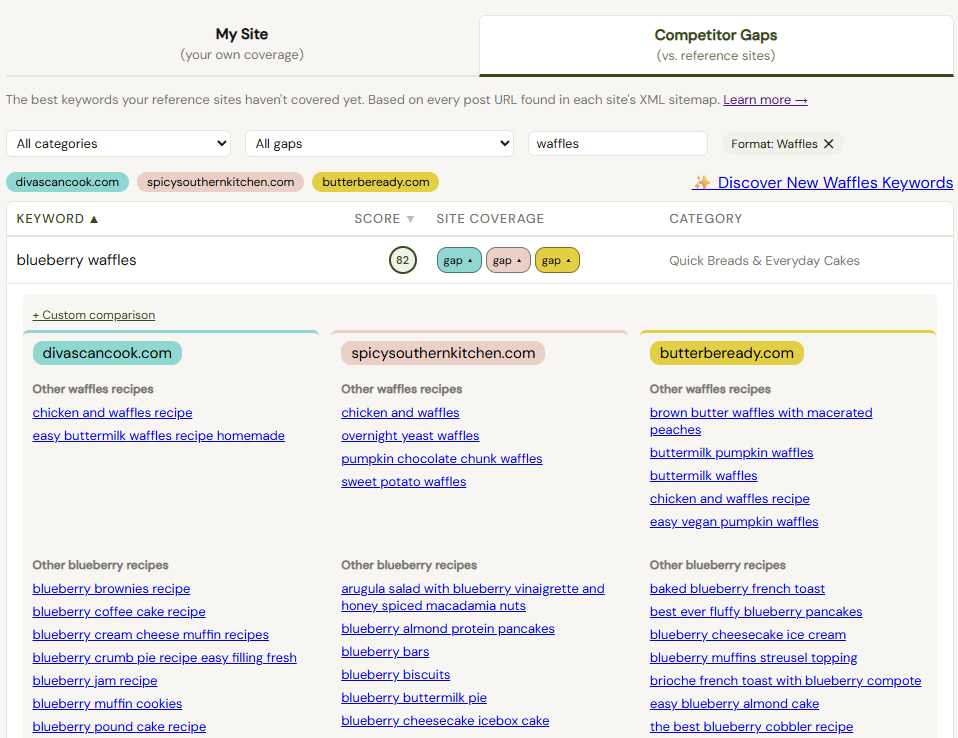
Blueberry waffles. None of the three sites had a blueberry waffle recipe, so all three pills showed a gap. But the comparison view still shows related content: other waffle recipes and other blueberry recipes each site has published. That's exactly what you'd want to review before deciding whether to develop your own version.
Air fried pork chops. Again, no exact matches, but RIPE pulled up other pork recipes, other pork chop recipes, and other air fryer recipes. It also recognizes that "air fryer" and "air fried" mean the same thing.
Chocolate chipless cookies. No matches, and this time RIPE reported that it found no other "chipless" recipes either. That's useful to know that the search was run, and there's simply nothing there.
Custom comparisons
Sometimes the automatic comparison isn't the one you need. Use the custom comparison option to check individual parts of a keyword. Want to see what other chocolate cookie recipes exist across the three sites? Check those terms from the seed keyword, hit Compare, and you'll get that specific list for all three sites.
When a site already has the recipe
Not every keyword is a three-way gap. For "chewy chocolate peanut butter chip cookies," the first site had an exact match while the other two didn't. Scroll further and you'll find keywords like white chocolate macadamia nut cookies where all three sites have a matching recipe. In each case, the comparison view shows the exact matches alongside related content, so you can see how saturated a topic really is.
Using My Site
The My Site view is a drill-down of the types of recipes already on your website, built from your sitemap. (Note: this isn't ranking data or a list of the keywords bringing traffic to your site. A Google Search Console connection is a planned future feature.)
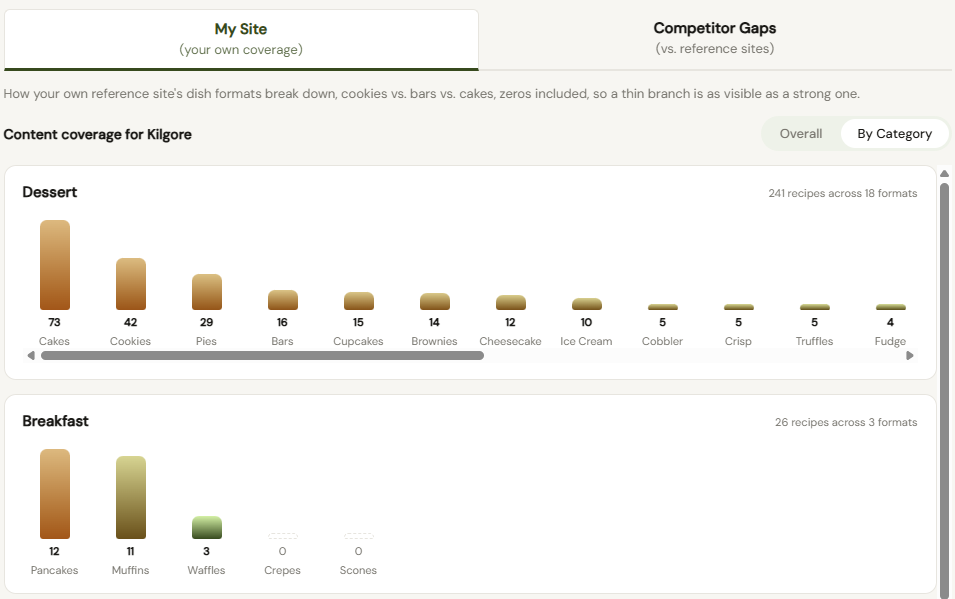
Click any recipe type, such as "bites," and you'll see every recipe of that type on your site. Switch the toggle to By Category and you'll see subcategories inside your pillars. If desserts is a pillar, this shows you whether you could build a sub-pillar around just cookies or just cakes, and where the holes are.
At the top of any category list is a link to find keywords worth developing in Competitor Gaps, filtered to that category. If that comes back empty, it means your keyword library doesn't yet contain gap keywords for that category. That's your cue to go add some.
Discovering new keywords with Remix
From that empty state, click Discover new keywords to jump to the Discover tab. You can run a plain discovery search, but the better option is Remix, which now offers both automatic and cherry-pick modes.
In cherry-pick mode, RIPE uses its map of flavors, styles, and formats to assemble up to 200 candidate keywords around your base term, such as "bars." You then go through and toggle off anything that doesn't fit:
- Don't want "frosted bars"? Uncheck it.
- Sweet flavors like strawberry bars, orange bars, and lime bars might all make sense.
- Savory combinations for a dessert bar? Uncheck the whole group.
- Combined modifiers like "easy strawberry bars" can be reviewed one by one.
Running up to 200 keywords costs a single credit, so fill it up. The result is a list of only the search terms that actually have search data behind them.
RIPE defaults to informational-intent keywords, allowing a transactional one only when it also fits recipe intent. If you want to be extra safe, filter to info-only.
Sort by volume, and when you spot something worth pursuing, such as "lemon bars," add it to your library with one click. RIPE will slot it into the right category (you can customize categories in Settings), and you can add tags, link related keywords, and check seasonality from the detail view. Your Remix results stay available for 14 days, so you can come back without spending another credit.
Once your library is stocked, RIPE's other planning tools can help you sort out which keywords are due to go live now versus in a month or two.
For recipe developers
I don't have my own food blog, but I do want to know what matters to my clients so I can take content creation off their plate. Loading my top three clients as reference points shows me exactly what's missing from their sites and where I can step in. If you develop recipes for others, this is where the feature really earns its keep.
This is beta, so please break it
Everything in RIPE runs on a map of words and flavors that pair together, and I'm building those tables by hand. If a comparison shows something odd (say, "other white recipes" when you were looking at white chocolate), drop it in the feedback box right on screen. A quick note like "other white recipes in content gap" is enough for me to find and fix it.
And if there's a feature you'd love to see, whether it exists in another tool or you've never found it anywhere, let me know in the comments. I'd love to hear from you, and I hope you enjoy Content Gaps.